Songs
Your library — every song you're learning, with chords, key, capo, imported lyrics, and your own recorded takes. The most information-dense tab in the app, and the one you'll open the most.
Songs is where the actual learning happens. Everything else in the app — the tuner, the practice tools, Jam — exists to support what's sitting in this tab. If you only ever use one part of Guitar Buddha, it's probably this one.
Building your library
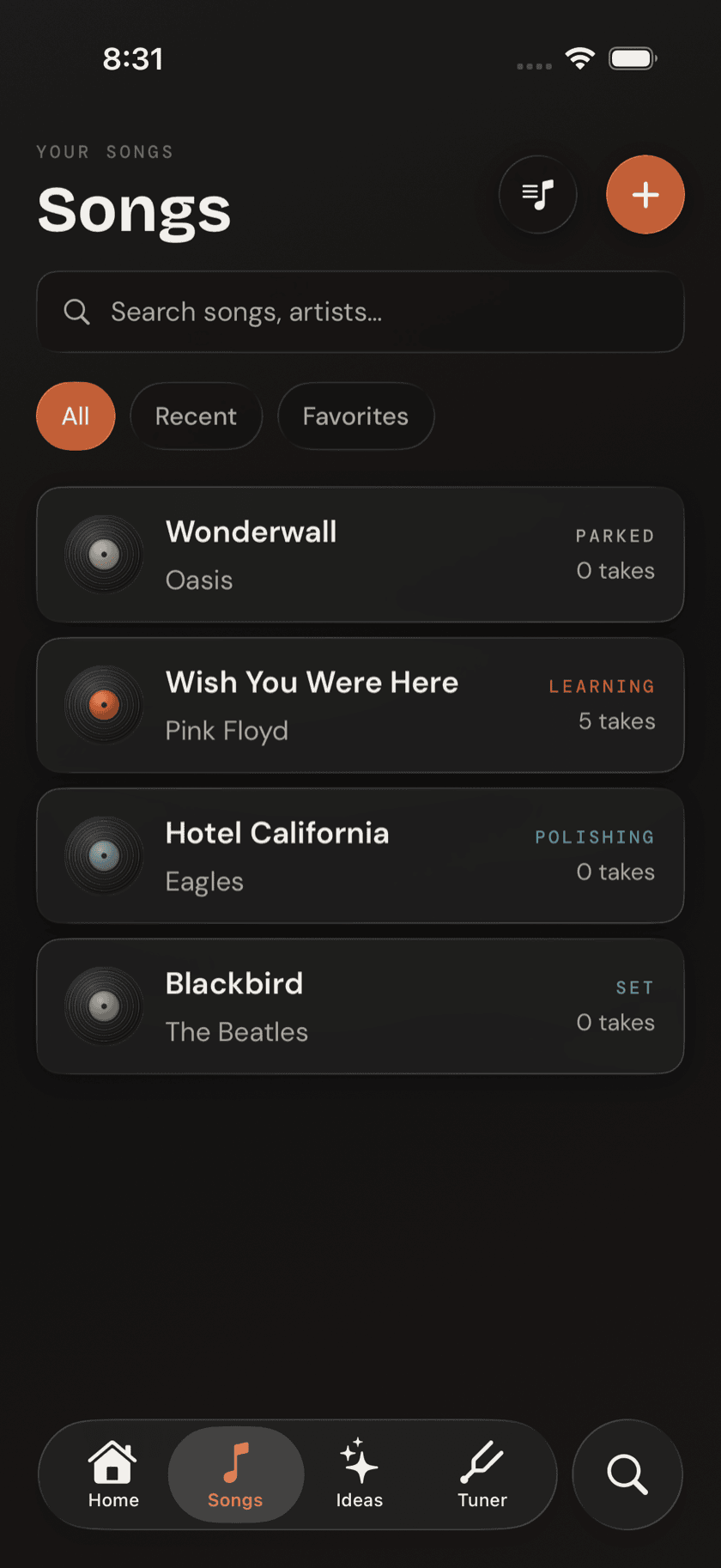
The Songs tab opens on a searchable list of everything you've added, favorites pinned to the top. Filter by All, Recent, or Favorites to narrow it down once the list gets long. Before you've added anything, the empty state points you straight at adding your first song — there's no blank screen staring back at you.
Adding a song
Tap Learn a song from Home, or the + in the Songs tab, and you've got four ways in:
- Level-tailored suggestions — a starting list shaped by the skill level you set during onboarding.
- Catalog search — search by title or artist. A match auto-fills chords, key, and capo position, so you're not typing any of that in by hand.
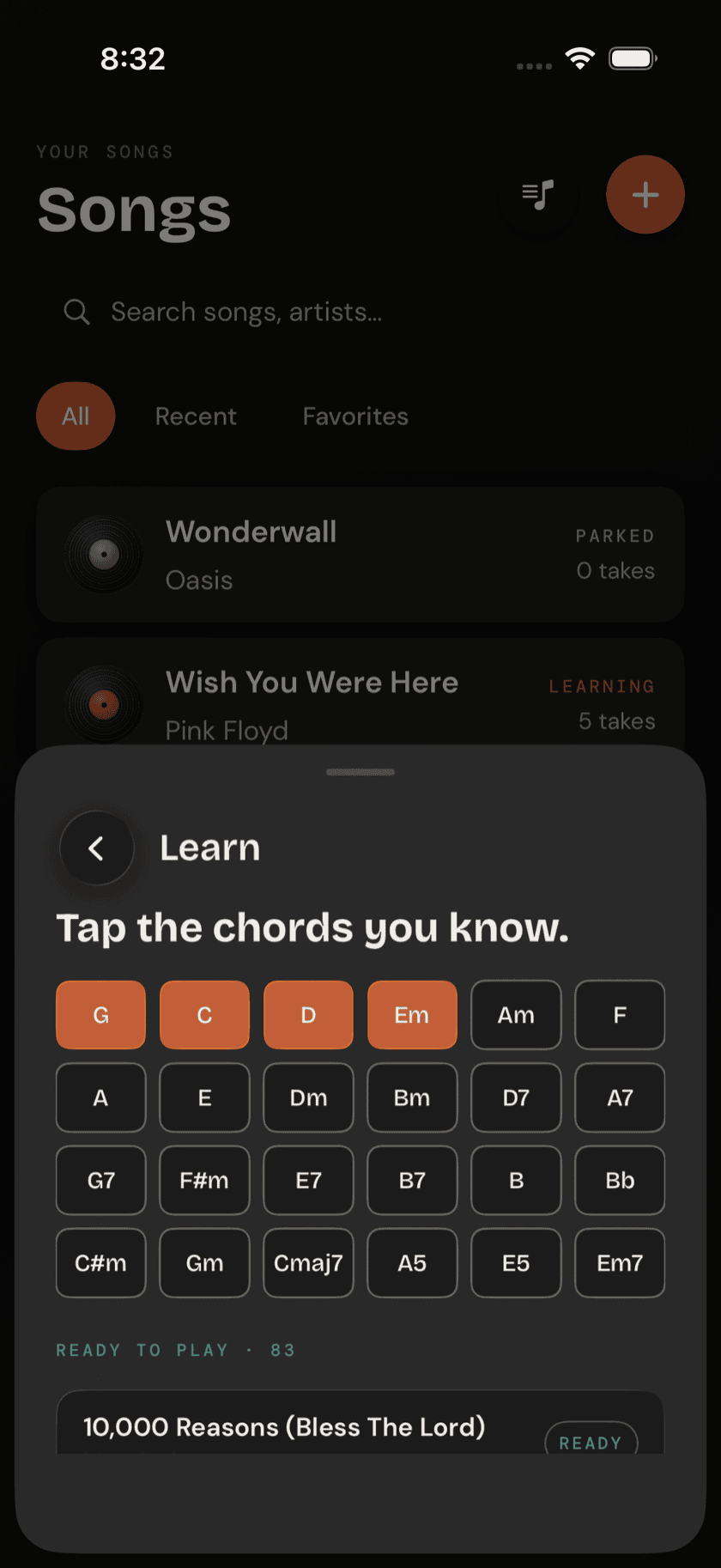
- Songs you can play — the interesting one. Tell the app which chords you already know, and it searches the catalog for songs that fit. Each result is flagged either ready to play or shows the one or two chords standing between you and playing it — genuinely useful for finding your next song rather than picking one and hoping.
- Manual entry — for anything not in the catalog. Type the title, artist, and chords yourself.
The song page
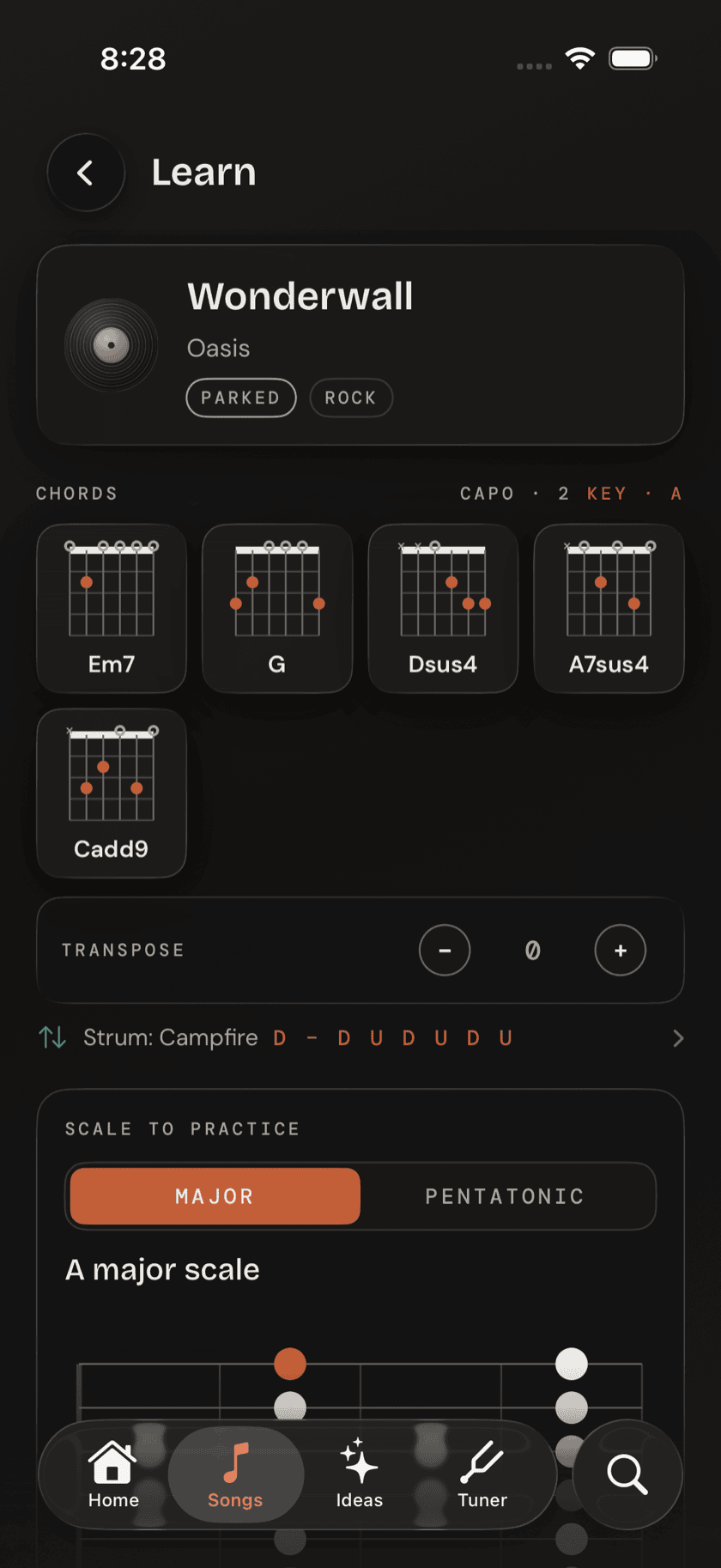
Every song opens to the same layout: a chord grid across the top, key/capo/BPM underneath, and the full chord sheet below that. Tap any diagram in the grid to enlarge it and hear it.
Tap any chord in the grid for its full diagram and a play button — useful for checking a shape before you commit to it mid-song. The transpose stepper shifts the whole song up or down; if transposing would turn a set of easy open chords into awkward barre shapes, the app suggests a capo position instead so your hands don't have to pay for a key change. Simplify chords does something similar in reverse — swap harder voicings (barre chords, extended chords) for easier ones that get you playing sooner, without changing what the song sounds like in any way that matters to a beginner.
Below the chords, a small fretboard diagram shows the scale that matches the song's key — handy if you want to noodle a solo over it later, without leaving the page to look it up. Further down, a Resources block gathers a one-tap search for a guitar lesson on the song, a separate link to the original recording or a live performance, and a Find-tab link to Ultimate Guitar for cross-checking a chord you're unsure about.
Simplify Chords doesn't edit your song. It's a toggle, on or off, any time — the original chords are always one tap away.
Chord sheets and lyrics
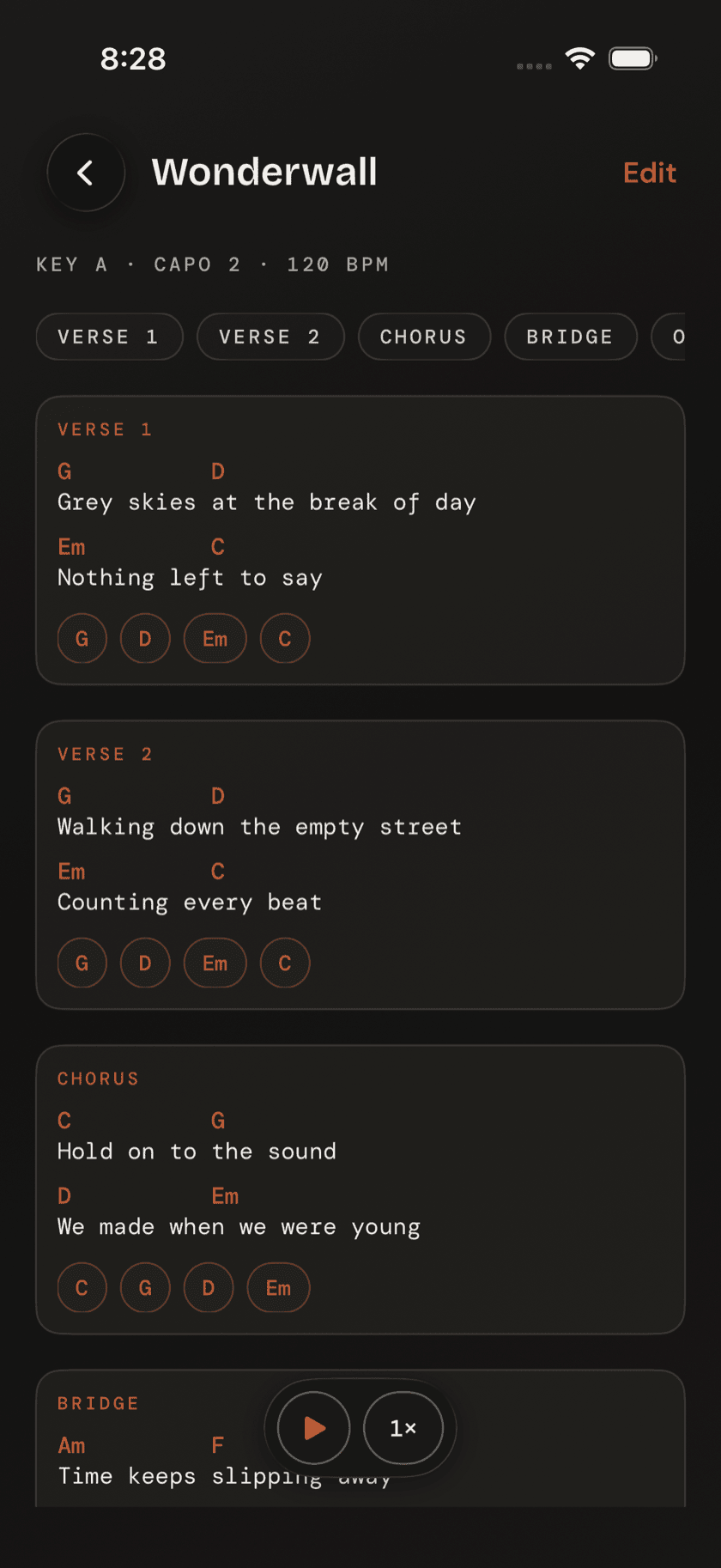
If you've got a full chord sheet — chords positioned above the lyric words they land on — you can bring the whole thing in rather than just the chord names. Paste one copied from any lyrics site, or point the camera at a printed or handwritten sheet: on-device text recognition reads it and lines the chords back up over the right words automatically.
Once it's in, the chord sheet displays with chords positioned above lyrics, every chord tappable for its diagram, and a teleprompter mode — auto-scroll at one of four speeds, so you can read hands-free while you're actually playing instead of stopping to scroll.
Need a copy on paper, or want to send one to someone? Export as PDF renders the chords, diagrams, and any imported tab into a printable document through the system share sheet.
Practicing a song
Tap Practice from a song's page and it opens a focused companion built around that one song: a running session timer, one-tap access to the tuner, a metronome already set to the song's tempo, the chord sheet, a link into playing along with the full band, and a record button — all without leaving the song. It's the difference between practicing a song and practicing in general.
Recording takes
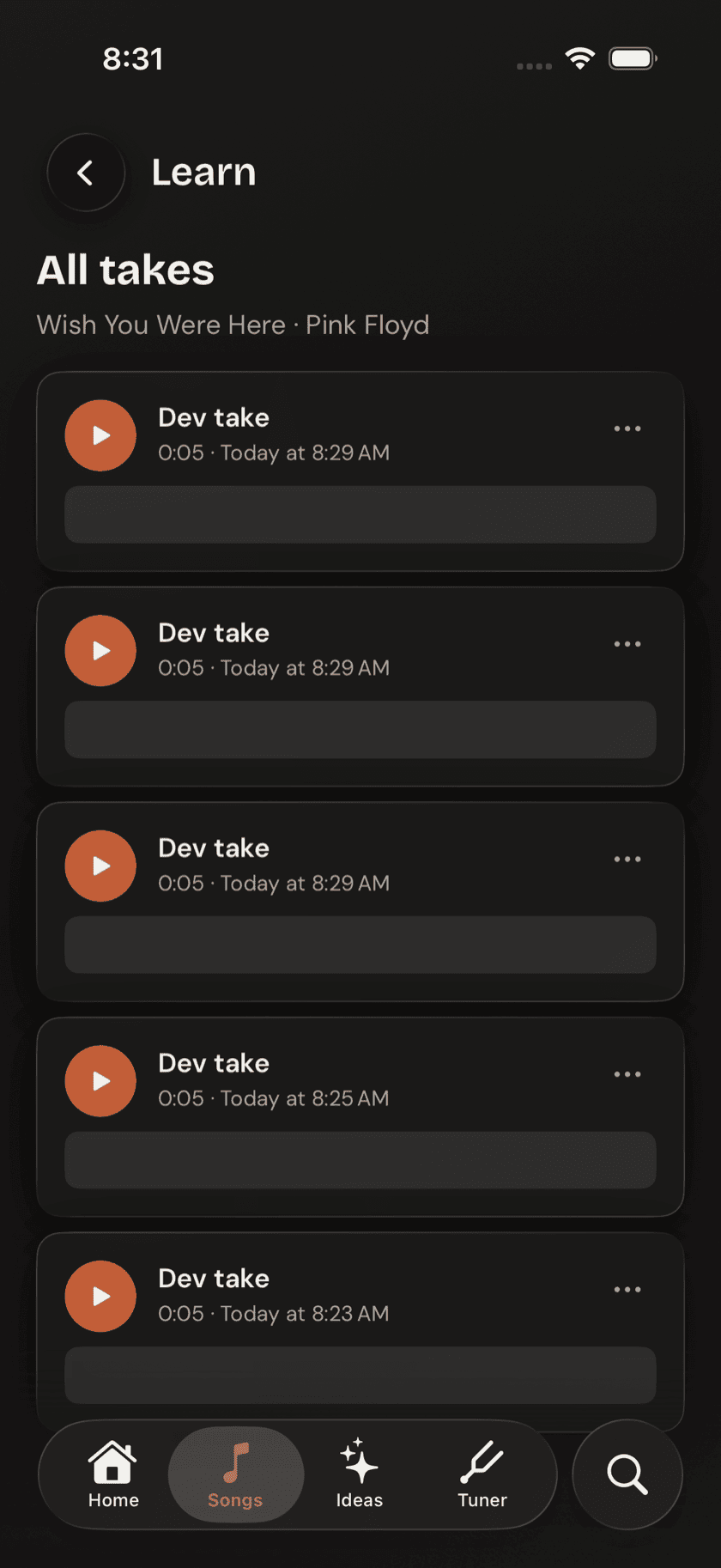
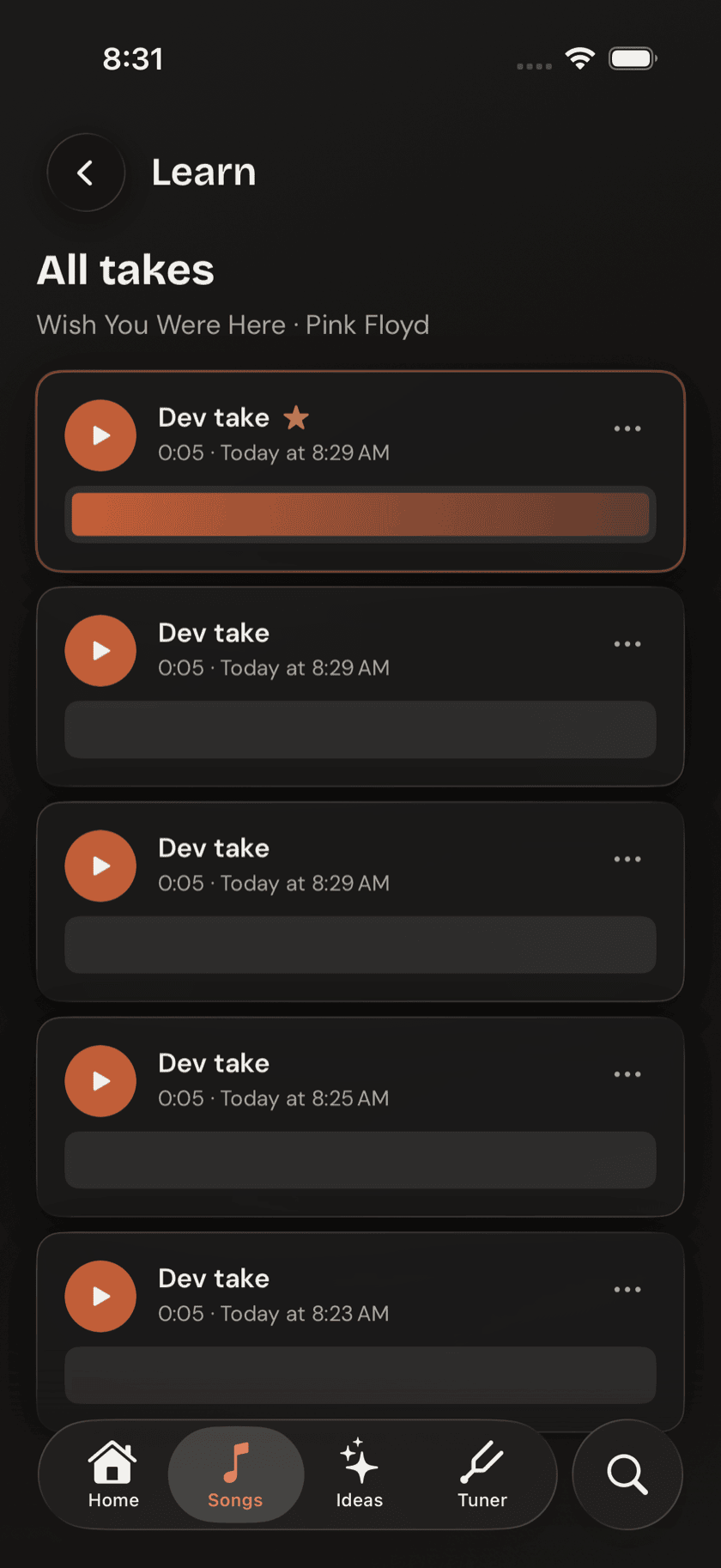
Record yourself playing a song and it's saved as a take — trim it with handles on either end, play it back, and mark your favorite as best so it's easy to find later. The song page shows your two most recent takes right there, with a link through to the full list when you've built up more than that.
Setlists
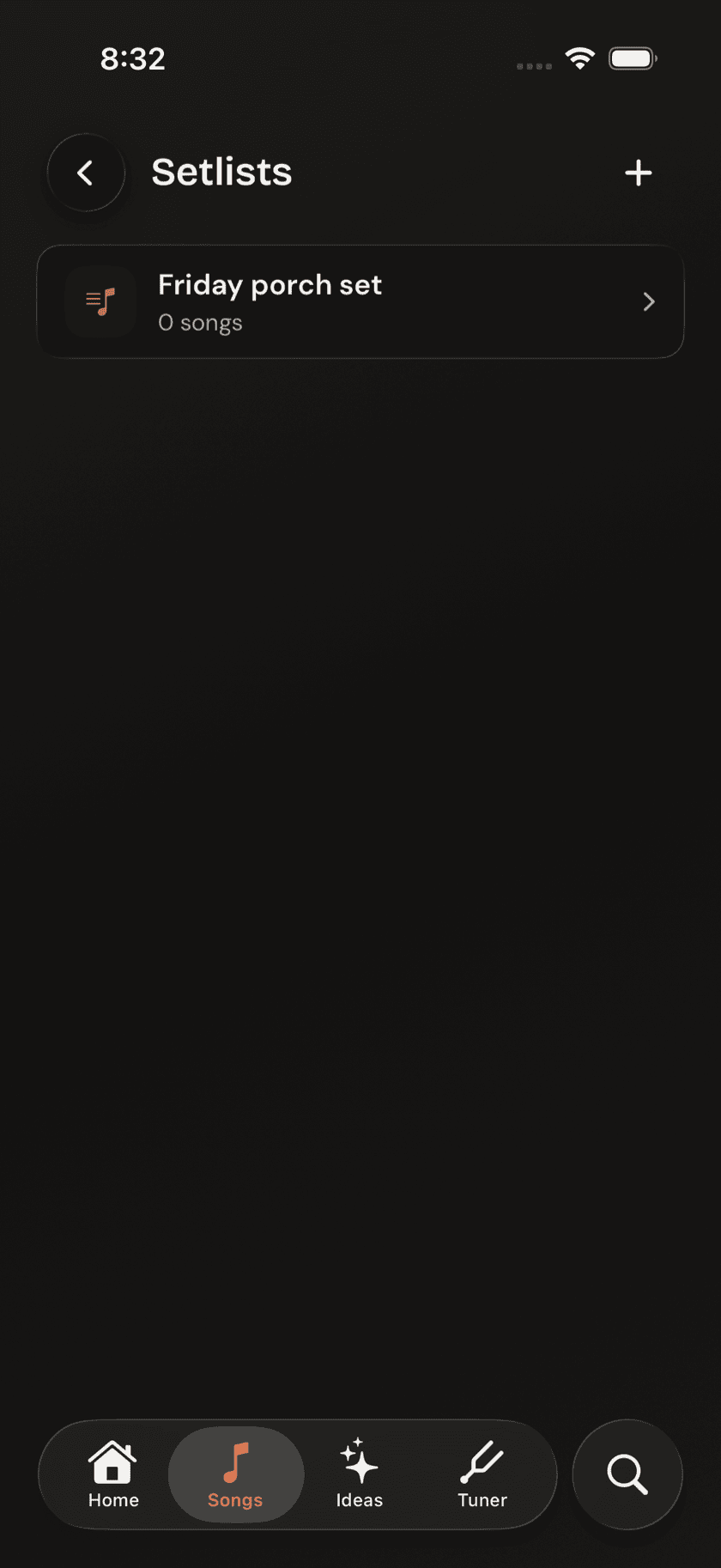
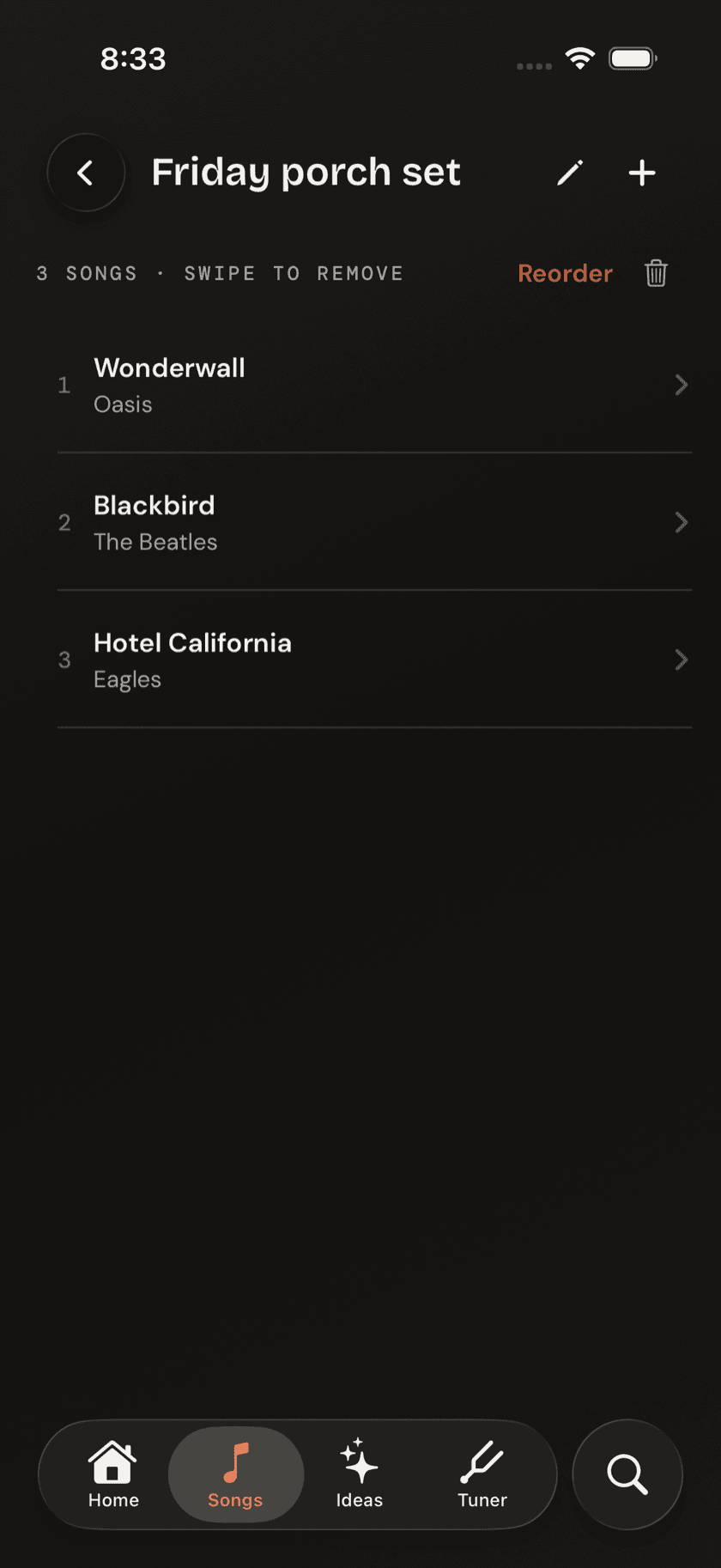
Building a set for a gig, an open mic, or just a focused practice session? Setlists are ordered, named lists of songs — create one, name it, reorder songs by dragging, rename or delete it later. Tap any song inside a setlist and it opens exactly like it would from the main library — a setlist is just a view into songs you already have, not a separate copy of them.